

A Mobile Lizard Baltimore Guide
Troubleshooting No Service on Android Step by Step
No service on your Samsung or Android phone is disruptive and often more urgent than a cracked screen — you need connectivity for work, communication, and safety. The good news is this problem has a clear troubleshooting path, and most cases are resolved without a repair visit.
Step 1: The Quick Fixes
Toggle Airplane Mode. On Samsung, swipe down the notification shade and tap the airplane icon. Enable it, wait 10 seconds, disable it. This resets your radio connection and resolves the problem more often than you’d expect.
Restart the phone. A full restart (power off, then on) re-establishes all network connections from scratch. Do this before moving on to anything else.
Step 2: Check Your SIM Card
Remove the SIM tray using the included tool or a straightened paperclip. Inspect the SIM card — if there’s visible damage, corrosion (greenish or dark discoloration), or if it’s not seating properly in the tray, that’s your issue. Reseat it firmly and check again.
If you’ve recently changed carriers or the phone was previously used on a different carrier, check whether the phone is unlocked for use with your current carrier.
Step 3: Update APN Settings
APN (Access Point Name) settings are the network configurations that allow your phone to connect to your carrier’s data and voice network. If these got corrupted after an update or SIM change:
Go to Settings > Connections > Mobile Networks > Access Point Names. Tap the three-dot menu and select Reset to Default. This often resolves no-service issues on Samsung after carrier changes.
Step 4: Check for Software Updates and Carrier Updates
Go to Settings > Software Update > Download and Install. Carrier connectivity fixes are often included in Samsung and Android updates.
Step 5: Network Reset
Settings > General Management > Reset > Reset Network Settings on Samsung. This resets all network configurations — Wi-Fi passwords, Bluetooth pairings, and carrier settings will need to be re-established. It’s a more thorough fix for persistent issues.
When It’s Hardware
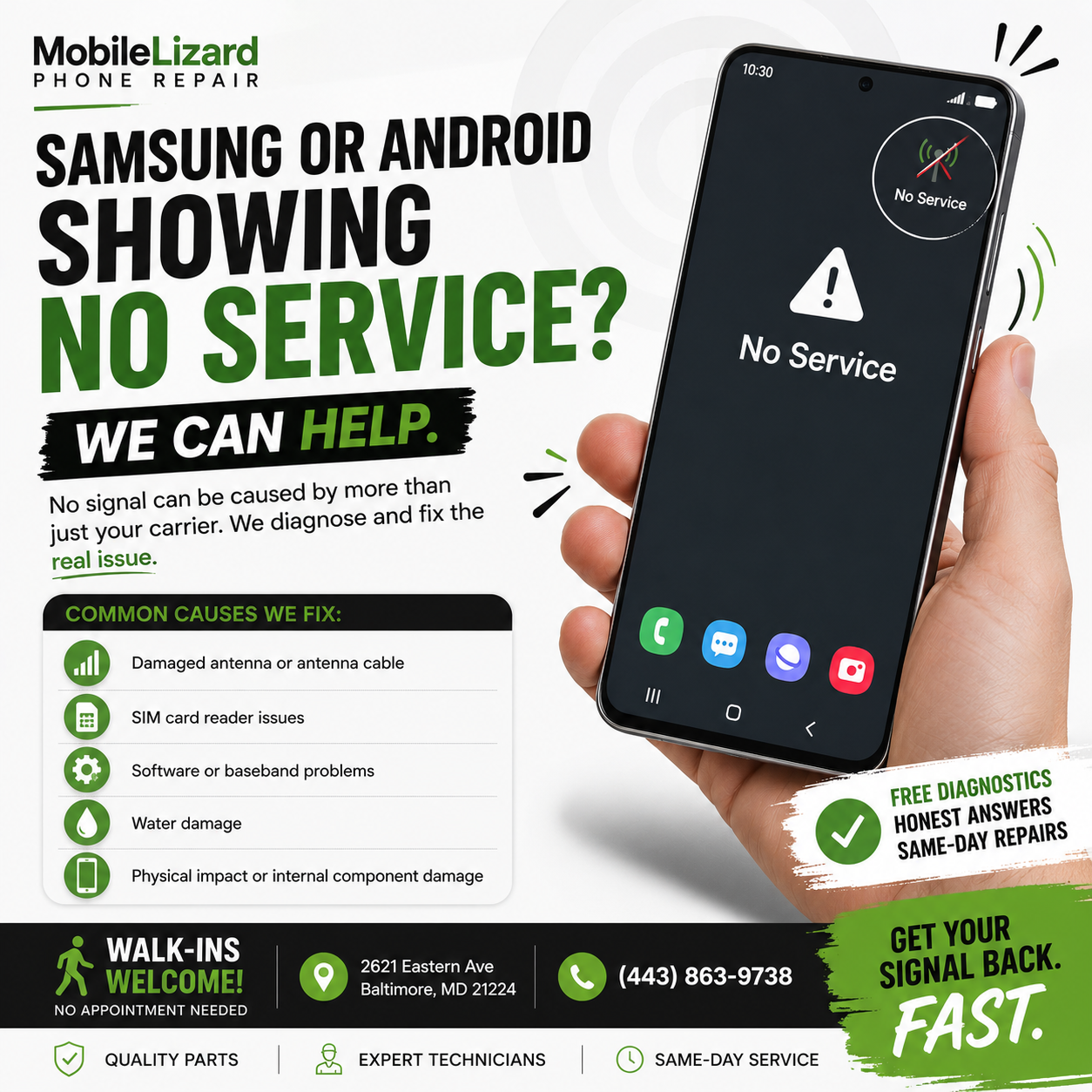
A damaged antenna — usually from a drop — can cause persistent No Service. If the above steps don’t resolve it and the problem started after a drop, bring it in. We can diagnose whether it’s an antenna issue, a SIM reader failure, or a software configuration problem.
See Samsung repair at Mobile Lizard and iPhone repair.
Serving Brooklyn, Curtis Bay, and South Baltimore — Walk-Ins Welcome
We’re at 2621 Eastern Ave in Patterson Park. Tuesday–Friday 11am–6:30pm, Saturday 11am–5:30pm. Call or text 443-863-9738.