

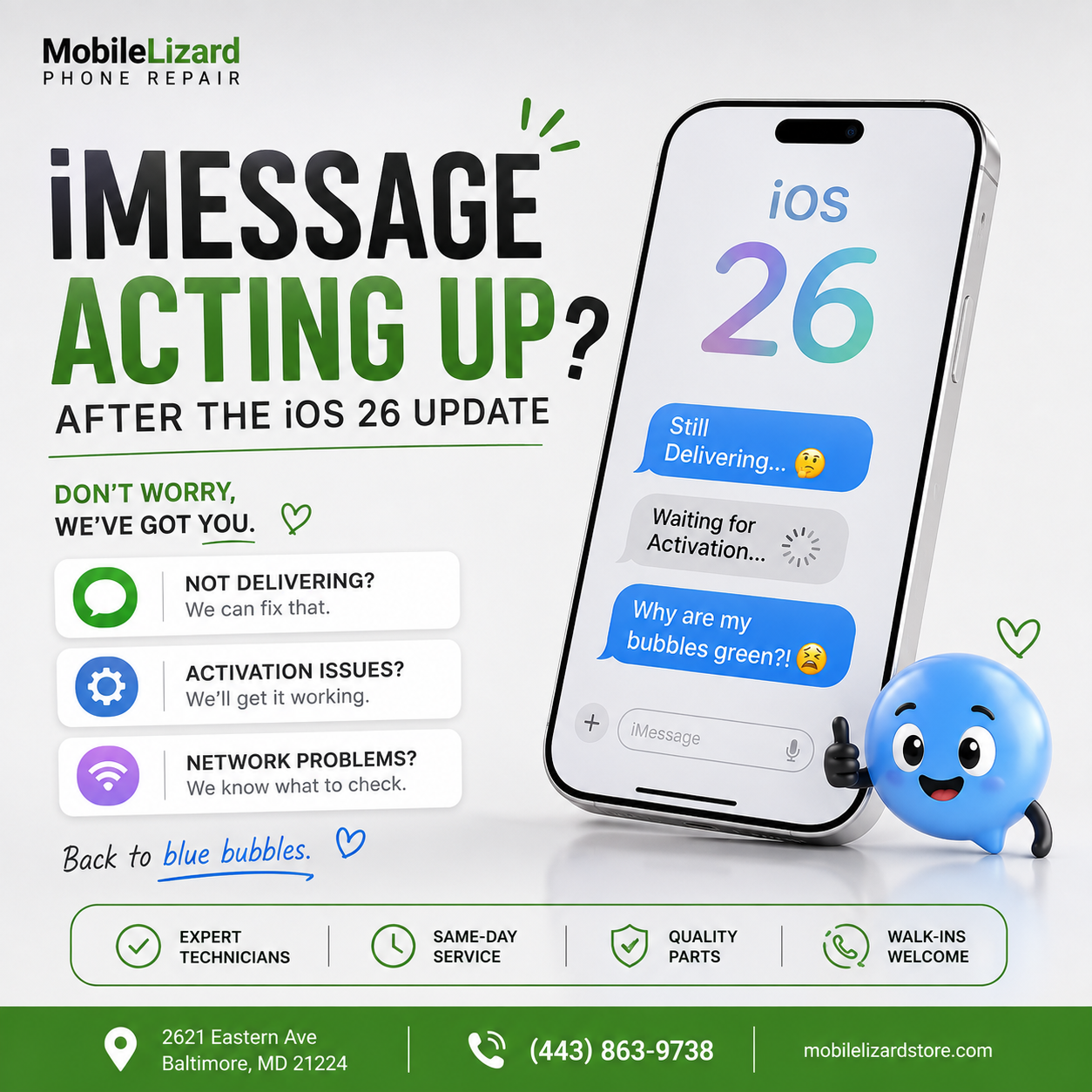
Follow the steps below to get iMessage working again
Major iOS updates occasionally bring a wave of iMessage hiccups, messages stuck on “Delivering,” activation errors, or blue bubbles that suddenly turn green for no clear reason. Here’s how to work through it.
Start With Activation
Go to Settings > Messages and toggle iMessage off, wait about 30 seconds, then turn it back on. This forces your phone to re-register with Apple’s servers, which resolves the majority of post-update iMessage glitches. If it’s still showing “Waiting for Activation” after several minutes, try toggling Airplane Mode on and off first, then retry the iMessage toggle.
Check the Basics Behind the Scenes
Confirm the date and time are set to automatic under Settings > General, since an incorrect device clock can silently break secure connections to Apple’s servers. Also confirm you’re signed into the correct Apple ID under Settings > Messages > Send & Receive, especially if you’ve recently changed passwords or signed out for any reason.
If a SIM or Carrier Issue Is Involved
Occasionally, iMessage activation problems are tied to a carrier-side issue rather than anything on your phone — if you’re also seeing signal problems alongside the iMessage error, work through our guide on no signal on your iPhone first, since fixing the underlying signal issue often resolves iMessage at the same time.
Still Stuck?
If none of the above works after a full day, the issue is usually server-side and resolves on its own but if your phone has other symptoms alongside it, it’s worth a proper look. Pricing on our iPhone repair page.
Convenient for Charles Village, JHU and West Baltimore Walk-Ins Welcome
We’re at 2621 Eastern Ave in Patterson Park. No appointment necessary. Open Tuesday–Friday 11am–6:30pm, Saturday 11am–5:30pm. Call or text 443-863-9738.